💡We are curious! How many Dreame products do you have at home?
|
|
|
|
|
|
Hello, Please refer to the steps below: 1. Move the robot and the base station to the corresponding floor or new environment, connect the base station to power, and place the robot on the charging dock. 2. In the app, tap the Map icon, enable the Multi-floor Map feature, and then tap the "+ Create Map" button below to create a new map. 3. You can choose either Start Cleaning or Quick Mapping to create a map of the new environment. Please make sure the robot starts from the charging dock. Once the task is completed, the robot will automatically return to the dock, save the map, and complete room partitioning.
13-8-2026 08:41
 GB
Translate GB
Translate |
|
|
|
|
7. Please regularly clean the line laser sensor and AI camera. Dust or dirt on these components may cause the robot to mistakenly identify obstacles ahead, resulting in missed cleaning areas. If the accessory you need is not available on the website or is currently out of stock, you can also contact our after-sales service team, and we will assist you with the purchase. Phone: 0808 502 1616 Email: aftersales@dreame.tech Service Hours: Monday to Sunday, 9:00–18:00 Thank you for your understanding and support.
13-8-2026 08:35
GB
Translate3. If there is an issue with overlapping map data, the robot may experience positioning errors, which can result in missed areas. In this case, we recommend creating a new map. 4. If obstacles such as slippers, cables, or other objects are placed near the entrance to an area, the robot may avoid entering that area. 5. If a threshold is higher than the robot's climbing capability, the robot may not be able to pass into that area. 6. When the robot encounters obstacles, it will perform obstacle-avoidance maneuvers. As a result, a small area around the obstacle may not be cleaned. This is considered normal behavior.
13-8-2026 08:33
GB
TranslateHello, we are pleased to hear that you are satisfied with your device. Regarding the missed cleaning areas you reported, please check the following: 1. The robot may be unable to enter narrow spaces. Generally, areas with a width of less than 40 cm may be inaccessible, depending on the home environment. 2. For models equipped with ultrasonic carpet detection, if the robot is in mopping mode and the carpet avoidance option is enabled, detecting a carpet near the entrance of a room may prevent it from entering that room for cleaning.
13-8-2026 08:32
GB
Translate |
|
|
|
|
Additionally, we recommend verifying that both devices are set to the same country/region in the Dreame app. If different regions are selected, sharing invitations may not be received properly. An unstable network connection may also prevent sharing requests from being received. Please ensure that both phones are connected to a stable internet connection (Wi‑Fi or mobile data), and then try sending the sharing invitation again.
13-8-2026 08:18
GB
TranslateDreamehome APP: Click the 3 dots "..." in the top right corner---Click "Device Sharing"---Enter the account ID of your friends/family---Click "Share". Mi Home APP: Enter the device page---Click the 3 dots "..." in the top right corner---enter "Settings" page and click "Device Sharing"---Click "Xiaomi Account (Phone)"---Enter the account ID of your your friends/family---Click "OK".
13-8-2026 08:15
GB
TranslateHello, If you want to share the device to others, please refer to the below steps(as the attached image shows). Before sharing the device, make sure your robot has been connected to the Wi-Fi network, and the user to be shared with has signed up in the APP. 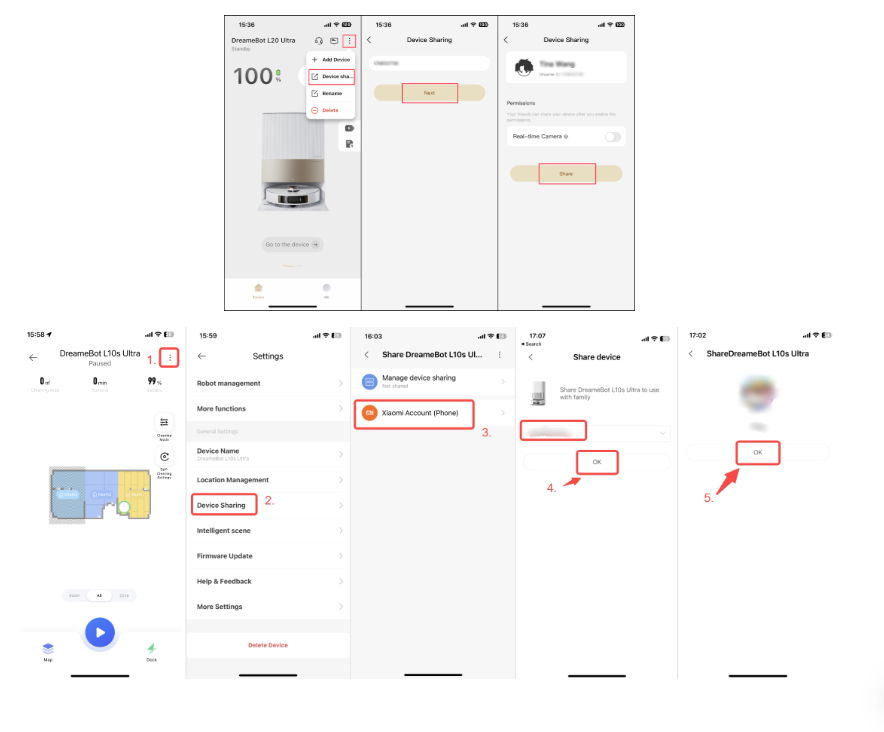
13-8-2026 08:14
GB
Translate |
|
|
|
|
Regarding your suggestion for a cleaning solution with a more noticeable fragrance, we have recorded your feedback and will share it with the relevant team as a reference for future product improvements and development. Thank you for your understanding and support.
13-8-2026 08:07
GB
TranslateHello, Thank you for your feedback. Our cleaning solution is primarily designed to clean the mop pads and remove dirt and grime, so it may leave a light, fresh scent, but it is not intended to produce a strong or long-lasting fragrance. We do not recommend using cleaning solutions from other brands. Since the ingredients and formulations may vary, they could corrode the water tank or internal tubing, cause blockages, and potentially affect the normal operation of the device or even lead to damage.
13-8-2026 08:06
GB
Translate |
|
|
|
© 2026 Dreame Forum All Rights Reserved | Support by Discuz! X5.0 Font by MiSans








After the robot starts from the base station, do not move the base station.
If the battery level is too low, or if the robot is manually returned to the base station during the cleaning process, the map will not be saved.
After a map has been successfully saved, if you would like to clean a specific floor, move the robot to that floor and switch to the corresponding map in the app.
Please ensure that the map selected in the app matches the floor where the robot is located before starting a cleaning task.
We hope this information is helpful.